Thursday, 10 September 2015

How to Build a Computer, Lesson 4: Installing Your Operating System

Now that you've put everything together, you're past all the difficult stages—the rest is a cakewalk. Here's how to install your operating system and get everything up and running.
If you've never installed an OS before, it's remarkably easy. If you have, I'd still suggest reading through this guide to make sure you've got it all down. Installing Windows on a custom machine can take a few extra steps than installing it on a pre-built machine. For this guide, we're going to use Windows 7 as an example, but you can of course install Windows XP, Linux, or even Mac OS X, if you're building a Hackintosh.

Step One: Edit your BIOS
When you first start up your computer, it'll tell you to press a key to enter setup, usually DEL. This takes you to the setup of your Basic Input/Output System, or BIOS. Here, you can configure some of the lowest-level aspects of your new machine. You may not actually need to edit any of these settings, but it's a good idea to go through, get acquainted with them, and make sure everything's in good order before moving on.
Note that the BIOS will be a little bit different on different brands of motherboard, so your screen may not look exactly like the images here, but it should be close.

First, make sure that everything's been installed correctly. If you have a System Information page in your BIOS, head there and make sure the amount of RAM listed is the same amount you put in. If it isn't detecting all of your RAM, some of it might not be seated correctly, so go back and fix that before continuing. If there isn't a System Information page in your BIOS, your motherboard probably lists the amount of RAM it detects on the POST screen, right after you press the power button.
Find the SATA configuration option, and make sure its configured as AHCI. If you're running Windows XP you'll need to change this to IDE, otherwise AHCI is probably what you want to go with.

Lastly, find the "Boot Order" or "Boot Priority" page. Make sure your DVD drive is the first drive on the list (or your USB drive if you're installing from a flash drive), and that the hard drive you'll be installing to is second. Note that some BIOS utilities split this up into two menus—one for setting the boot order for your different media (CD-ROM, hard disks, USB disks) and another that lets you choose the order of just the hard drives.
If you don't see your hard drive listed, it may not be plugged in correctly or it may be dead. Turn your computer off and re-check the connection if necessary.


These are the most crucial BIOS options you want to tweak, but there's a lot of other stuff going on in there. I encourage you to explore and look things up that you don't know, since it has some other useful settings. If you want to know more about your BIOS options, our friends at the How-To Geek have a nice rundown of useful tweaks, so check that out when you have some time. For now, we're going to get on with the installation process.

Step Two: Install Windows

 Before you install Windows, make sure you have the optimal version for your system. That is, if you have more than 4GB of RAM, you'll want to use 64-bit Windows instead of the standard 32-bit—that will allow your system to take advantage of all of your RAM. You can read more about this in our guide to 64-bit vs. 32-bit operating systems.
Once you've got the right version of Windows, grab the installation DVD (or flash drive, if that be the case) and pop it in. Start up your computer and it should automatically boot into the Windows installer. If you ever get a "Press any key to boot from CD" option, make sure to hit a key on your keyboard to continue.
Once the installer loads, hit the "Install Now" button, accept the terms of use, and choose "Custom (advanced)" when asked what type of installation you want. Find your primary hard drive (if you have more than one), click on the "Unallocated Space" partition, and hit Next. Windows should start installing.
If you aren't using a brand new drive, you may have to format it first. Click on the currently-used partition, click "Drive options (advanced)", and then hit "Format". It should format the drive to be Windows-compatible, after which you can hit next and let the installation run.
From there, the rest is just a waiting game. Leave your computer alone to do its thing. It'll copy all the necessary files to your disk and reboot a number of times in the process. You'll know you're done when you hear the familiar startup chime and boot into the default Windows 7 desktop.
Step Three: Install Your Drivers

The last thing you need to do before you actually use your computer is install your drivers. If your Ethernet or Wi-Fi works out-of-the-box, Windows may find most or all of your drivers for you. If not, you'll need to pop in the CD that came with your motherboard to install the Ethernet or Wi-Fi drivers you need to access the internet. Don't install any other drivers from that CD just yet.
Once you've got the internet up and running, Windows will install drivers for you. It might not catch everything though, so you'll have to install some manually. The CDs that came with your motherboard, video card, and other hardware are probably already out of date, so I don't recommend using them to install drivers.
Instead, you'll want to download the drivers manually from the manufacturer's web site. Head to your motherboard's support page and download any necessary drivers, including chipset, audio, SATA, and any other drivers listed. Note that you probably only want the drivers—you don't want the extra bundled software it offers, unless there's something in there you really want. For your video drivers, download them straight from NVIDIA or AMD's web site rather than the card manufacturer's site.
Step Four: Install Windows Updates

The last thing you'll want to do is get Windows up to date. Chances are, you've already gotten a notification from Windows Update at this point, but if not, head into your Start Menu, go to Programs, and hit Windows Update. Install all the updates it gives you, and reboot your computer. Check for updates again and it'll have a whole new slew of them for you. You'll have to do this quite a few times, but eventually it should stop serving you notifications and you'll be all up to date. When you are, you're ready to actually start using your computer.

Wednesday, 9 September 2015

How to Build a Computer, Lesson 3: Building the Computer

Step One: Mount Your Motherboard

To start, open up your case's box, take out the case, and open it up. Usually this involves unscrewing a few thumb screws on the back of your case and sliding the side panels off. Take a good look around your case and get acquainted; note where the hard drive bays are, where your CD drive will go, whether the power supply mounts on the top or the bottom, and so on. There should also be a bag of screws inside your case; grab that now and set it aside because we'll need it in a few minutes.
Open up your motherboard box and take out the I/O shield, which is the metal plate that protects the ports on the back of your motherboard. You should see a rectangular space in the back of your case where this should go. Snap it into place. This takes quite a bit of force, so make sure all four sides are snapped in securely.
Next, pull out your motherboard and line up the ports on the back with the I/O shield. You should see that the holes on your motherboard line up with screw holes on the bottom of your case. There are probably more holes on your case than there are on your motherboard, so note which ones these are, and grab your motherboard standoffs from your bag of screws (they have a male screw end on one side, and a female screw hole on the other side). Screw the standoffs into those holes, and set your motherboard on top of them. Screw your motherboard screws into the standoffs so the motherboard is snugly mounted.

Note: Many of you have mentioned that you prefer to install the processor, cooler, RAM, and power supply before mounting the motherboard in the case. I've never done this myself, but in some cases, this may be simpler and save you some digging around in your case. I recommend using your motherboard box as a small "bench" for plugging these parts in if you're going to do it separately.
Step Two: Install Your Processor                  


Open up your processor's box and gently take it out. Your processor is one of the more fragile parts of the build, so this is one step in which you'll want to be careful. Find the coner of your processor that has a gold arrow on it, then look at your motherboard's processor socket for a similar arrowed corner. Line these two arrows up; this is the direction your processor will go into the socket.
Lift up the lever on the processor socket and put your processor in (Intel motherboards might also have a cover you have to lift up first). Pull the lever down to lock it into place. Again, do this gently—it shouldn't require any feats of strength on your part, so if it isn't falling into place easily, something's wrong. Take it out and try re-setting it, make sure your two arrows are lined up, and of course, double check that your motherboard and processor are of the same socket type.

Once your processor's in, grab the cooler that came with your processor (remember, if you got an OEM processor you'll have to buy a cooler separately). It should already have some silver thermal paste on the bottom. If not, you'll need to pick some up from the computer store and put a very thin line on your processor—I usually use about the size of a grain of rice or two, that's all (see the video in Step Zero for more information on this).
Set your cooler on top of your processor. If you have an Intel cooler, you'll need to press down on the four pins until they click. You can find more info on this in your processor's manual (it takes a few tries, trust me). AMD coolers, like the one in the above video, are much easier—just hook the two latches on the sides onto the motherboard's square pegs, and pull the lever down to lock it into place.
Step Three: Install Your RAM

Installing RAM is very simple. Find the RAM sockets on your motherboard, and pull the two clips on the side down. Line up the notch in your RAM stick with the notch in the socket, and press the RAM down into place. This might take a bit of pressure, so don't worry about being overly gentle. The clips should snap back into place when the RAM is fully in the socket.
Step Four: Install Your PCI Cards

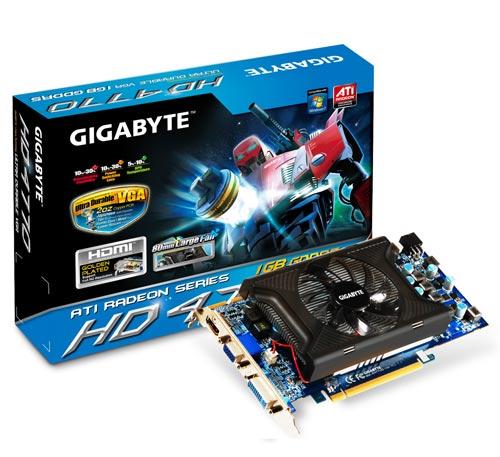
For your video card (or any other PCI expansion card), find the topmost slot that fits your card and match that up with its plate on the back of the case. Remove that plate and slide the PCI card's bracket in its place. The card should then be sitting on top of the socket, and all you need to do is press down to lock it into place. Screw the bracket onto the case, and you're good to go.
Note that if you need to remove it for any reason, there may be a small lever on the back of the socket you need to press before you pull it out.
Step Five: Install Your Hard Drive

Every case is a little bit different in how they install hard drives. Generally, there are two methods: on some cases, you have to pull out a hard drive tray, put the drive in, screw it in securely, and then slide the tray back in. Other motherboards just require you to slide the bare drive into the bay and then screw it in snug after the fact. Check your case's manual for more detailed instructions on this particular step.
If you're using multiple hard drives and a big case, it's usually a good idea to leave some open space between them—that is, putting them in the first and third bays instead of first and second. This allows for more airflow between them and will help keep them running cool.
Step Six: Install Your Optical Drive
The optical drive should be pretty self-explanatory. Just pull out the plastic cover on one of your 5.25" drive bays and slide in your optical drive. Screw it into place if necessary.
Step Seven: Mount Your Power Supply

Once everything else is in, it's time to install your power supply and plug everything in. (Note that if your case came with a power supply, you can skip this step, as it'll already be installed). It should be pretty obvious where your power supply goes, as there will be a big rectangular hole on the back of your case. Some power supplys mount on the top, while some sit on the bottom of the case. Generally, they mount with the fan facing away from the edge of the case, unless that case has enough space in between the power supply mount and the end of the case to allow for airflow.
Once you set it into place, you should see the holes on the back of the case line up with the screw holes in the power supply. Screw it into place and you're all set.
Note: Many of you have recommended installing your power supply before installing all the other items. I've personally never done this, but depending on your case, it may be ideal. Once again, plan before you build!

Step Eight: Plug Everything In


This can be the most tedious and difficult part of the process, depending on your case and power supply. Separate the cords coming out of your power supply and plug them in individually. You should have:
A 24-pin Motherboard Cable: This is the biggest cable on the power supply, which gives the motherboard the electricity it needs to run. It has the very long plug with, you guessed it, 24 little pins in it. Most cases should have a 20-pin with a 4-pin on the same cable, so you can just put them together and plug them into the big 24-pin socket on your motherboard. It should lock into place, and might take a bit of strength to get it in all the way. Push it in until you hear the click and you can't pull it out with just a slight tug.
A 4-pin Motherboard Cable: You should also have a separate 4-pin cable coming out of your power supply, and a small 4-pin socket somewhere else on the motherboard. This plugs in the same was as the 24-pin cable—just push down until it locks into place.
6-pin PCI Cables: If you have a rather powerful graphics card, you might have to plug it into your power supply. This requires the 6-pin "PCI" cable coming from your power supply, which should look similar to the 24-pin and 4-pin cables. Plug it into the end of your video card. Note that not all video cards require these cables, so if it doesn't have a socket, you can leave it be.
SATA Power and Data Cables: Your hard drives and optical drive plug in via SATA, which contains two cables. One is the skinny black plug coming out of your power supply, which gives power to those drives. The other is a small red cable that should have come with your motherboard; this is the SATA cable that actually transfers data between your hard drive and everything else.
Plug the power cable into the long pin on your hard drive, and plug the data cable into the short pin. The sockets are L-shaped, so they'll only go in one way. After plugging both cables into the drive, be sure to plug the other end of the data cable into your motherboard, in the sockets labeled SATA. Repeat this entire process with your optical drive.
Molex Power Cables: Your Molex cables power other miscellaneous things in your build, like the case fans. Take the plugs connected to your case fans and plug the male side into the female molex cable on your power supply. This takes a bit of force to get in, and even more force to get out (seriously, these are my least favorite cables of all time).
Note that some fans, like the one on your CPU, might have a smaller connector that actually plugs into your motherboard instead of the power supply instead of via Molex. The small headers will be labled CPU_FAN or SYS_FAN. If they're three pronged, they'll power your fans, but if your CPU cooler has a four-pronged fan plug then you'll also be able to control its speed from some programs.

Front Panel Audio, USB, and FireWire Connectors: Most cases have a few ports on the front, which can include but are not limited to USB, FireWire, headphone, and microphone jacks. You should see some small cables coming out of the front of your case labeled things like USB, HD AUDIO, and 1394 (which is FireWire). Plug these into their corresponding 8-pin headers on the motherboard—usually labeled USB, AUD, and 1394, or something of the sort.
Power Switch and LED Connectors: Lastly, you should have a few small cables labeled POWER SW, RESET SW, HDD LED, and so on. These connect the switches and LEDs on the front of your case to the motherboard, so you can actually turn your computer on. They all consist of only one or two pins, and all plug in on an 8-pin header somewhere on the motherboard. This varies from build to build, so you'll have to check your motherboard's manual to see how they all plug in. Your motherboard may also have a small speaker that plugs into an 8-pin connector, which you'll find in your motherboard box and will be listed in your motherboard's manual.
A Note on Cable Management
As you're doing all this, you want to be wary of where you're putting these cables. Generally, you want to keep them as out of the way as possible. The more they're tangled up in the middle of your case, the more they're going to block airflow from your fans, causing your computer to run hotter, louder, and possibly even overheat. Your case may have come with some zip ties to help you wrap them up and get them out of the way. Some cases even come with built-in cable management features, like clips or holes through which you route these cables to keep them out of the way.
Cable management is a beast unto its own, and it differs from case to case, so it's just something you'll have to fiddle with. I could do an entire night school on cable management, but I won't. If you have a particularly complicated build where a few simple zip ties won't suffice, I recommend checking out NCIX Tech Tip's cable management guide, shown above, which will take you through some more advanced cable management techniques.
The Final Step: Turn It On
When you're done, plug in the power cable in the back, flip the power switch on, and press the power button on the front of your case. If all goes well, your computer should turn on and, if you plug a monitor into your video card (or motherboard, if you don't have a video card), you should see what's called the POST screen. From there, you can head into your BIOS setup by pressing a key on your keyboard (usually Delete).
At this point, it's probably time to start cleaning up. I usually don't throw anything away but the actual garbage. I keep all the screws, brackets, and miscellaneous pieces I didn't use in the motherboard's box, and that becomes my "build box". That way, in future builds, or if I upgrade that build, I always have extras of everything on hand just in case. It's come in handy on more than one occasion, so I can't recommend this enough if you have any pieces left over.
Common Troubleshooting
If your computer didn't turn on, don't panic. First, recheck everything inside. Is your processor seated correctly? If your RAM all the way in its socket? Are your cables plugged into the right sockets? (this is a big one). Run through the entire process again to make sure you did everything correctly.
If your system turns on but makes a beeping noise instead of going through the POST screen, then you have an error. If you can find your motherboard's BIOS manufacturer (either by watching the POST screen or by searching online), you can diagnose these error codes to find out what's wrong with your system using these pages:
Also remember that Google is an extremely useful tool. If you're having issues but can't figure out what's wrong, try searching the net or posting on a computer building forum like Reddit's /r/buildapc. If nothing seems to help, you might have a faulty piece of hardware, like your power supply or motherboard, and you should go about exchanging it for something that works. I wouldn't jump to this conclusion too quickly, though—dig around in your case and do some research to make sure you didn't just plug something in incorrectly.
Once you've got a working computer, congratulations! You're in the home stretch, now—all you need to do is install an operating system. We'll come back to that tomorrow, but in the meantime, bask in the gloriousness of your accomplishment—it took a lot of work to get here, and you should feel good about yourself.

Tuesday, 8 September 2015

How to Build a Computer, Lesson 2: Choose and Buy Your Parts

Now that you have a better understanding of what goes into a computer, it’s time to actually choose and buy the components you’re going to use. In this lesson, we’ll show you how to most effectively pick out your parts.

The Processor (CPU)

Picking the “right” processor isn’t as important as it once was, but you should still do a little research so you don’t end up wasting money. There are a few things to look at when shopping for a processor, but let’s start with the basics: clock speed and number of cores. A processor’s clock speed determines how many instructions one core can carry out in one second. Thus, higher clock speed means your computer carries out instructions faster, while more cores means it can carry out more sets of instructions at one time. Some programs can utilize multiple cores at once, making them extremely efficient with multi-core CPUs, but also multitask well since they can carry out multiple sets of instructions simultaneously.
  • Socket Type: Your socket type (such as AMD’s “AM3” socket, or Intel’s “LGA 1150” socket) determines which processors you can use with that board. So, if you’ve already narrowed down the kind of processor you want, this is a good first step to narrowing down your motherboard. Look for a model with a socket type that matches your processor to ensure that the two are compatible.
  • Size: Motherboards generally come in three sizes: Mini ITX, Micro ATX, and full ATX. The more advanced features you need, the larger the motherboard will need to be, which will also determine the size of your case (and final machine). Generally, your motherboard will be dependent on these other factors, but if you absolutely need a super small machine, you’ll want to filter your choices to reflect that.
  • Number and Types of external Ports: Look at the ports available on the motherboard. Do you need a lot of USB ports? You’ll either want a motherboard that has them or enough PCI slots to support extra USB adapters. Do you need HDMI out? If you aren’t using a graphics card, make sure your motherboard has the right video output for your monitor. How many USB 3.0 ports do you want? Some have more than others. If you’re set on a motherboard that doesn’t have a feature you need, you can add most with expansion cards, but life is always easier if the motherboard has them built in.
  • Amount of supported RAM: If you plan on having a lot of RAM in your machine, you’ll need a motherboard that supports it. Look at how many slots your board has, and how much RAM it allows for.
  • Integrated Graphics: If all you’re going to do is browse the web, use Microsoft Office, and perform other simple tasks, you may be better off choosing a motherboard with integrated graphics. You only need to shell out for a separate graphics card if you’re playing video games, and maybe if you’re playing HD video (though some integrated graphics chips can even do that nowadays). If you’re getting a separate graphics card, it doesn’t really matter if your motherboard supports integrated graphics or not.
  • Number of SATA Ports: This determines how many internal hard drives and optical drives you can have. For most builds, this is only really a concern if you plan on having a lot of drives in your computer (like if you’re building a server or a NAS).
  • Number of PCI Slots: You can only have as many expansion cards as you have PCI slots, so if you want a dedicated video card (or two), extra USB ports, extra LAN ports, a Wi-Fi adapter, or other expansion cards, you need to make sure your motherboard has enough of them.
  • Chipset: Your motherboard’s chipset determines a lot of the more advanced features it has. Some chipsets support overclocking, some do not. Some support SLI and Crossfire (using multiple video cards in tandem), some do not. Others support SSD caching. Others are better for turning into Hackintoshes. If you didn’t understand any of the things I just said, you probably don’t need to pay too close attention to this—but if you want certain advanced features, chipset will narrow your selection considerably.

  • Size: Cases come in a number of shapes and sizes, and what size case you choose should match the kind of motherboard you’re buying. If you chose a Mini-ITX motherboard, then a Mini-ITX Tower or Mini-ITX Desktop box is for you. A Micro ATX mini tower is the size you’ll find in most pre-built computers, so know that mid and full towers are probably bigger than what you’re used to. Unless you’re going for a very high performance computer with many drives, expansion cards, and water cooling, a full tower is probably overkill for most users.
  • Airflow: This is something you’ll have to look for in user reviews. Every case is a little different, and the better your fans are placed, the better airflow you’ll have inside (which will keep your computer from overheating).
  • Noise: While you want good airflow, some fans are particularly loud, which can be annoying to some people. If you want your computer to stay relatively quiet, check the user reviews and see what people say about the case’s loudness.
  • Number of Drive Bays: If you need more than just a hard drive an optical drive, count the number of drive bays on your case and make sure you have enough. Keep in mind other things, like card readers, will take up drive bays as well. Internal 3.5” drive bays are for hard drives, external 3.5” drive bays are for card readers, and external 5.25” drives are for optical drives (and other stuff). Note that you can also buy adapters that’ll fit 3.5” card readers in a 5.25” bay, if necessary.
  • Ports on the Front: Almost every case you buy will have a number of ports on the front, which usually include a few USB ports, a headphone jack, and a microphone jack. If you want easy access to USB 3.0, for example, you’ll want to make sure it’s on the front of your case.
  • Cable Management: As you build, you’ll realize there are a lot of cables inside a computer. Unfortunately, if you just leave them hanging where they fall, they’ll block a lot of air from flowing correctly through the case, so you want to organize them as best you can. Some cases have built-in holes through which you can route cables, while some leave you to figure it out yourself with zip ties. The former is, obviously, a lot less work, so see what user reviews say about cable management options.
  • Look: Last but not least, you want to get a case that you think looks good. After all, you’re going to have to look at this thing for the next few years, so it’s worth getting one that isn’t an eyesore in your office. Want one with lots of lights? Go for it. Want one with a side panel window so you can see your handiwork? Show it off! Want a subtle black box that doesn’t call attention to itself? You can get that too.

  • Amount of RAM: At the time of this writing, 4-8GB seems to be the average for a normal machine. If you’re running virtual machines or using other RAM-hungry apps, you might want 8-16GB, but most machines should be fine with around 4GB. Keep in mind that RAM is easy to upgrade, and if your motherboard has four slots, you can always get two sticks now and add two more sticks later. There’s no need to get a ton of RAM now in the name of “futureproofing”.
  • Channels: Your motherboard will support either dual, triple, or quad channel RAM. This decides how many sticks of RAM you get. If you have a dual channel motherboard, you’ll want to buy RAM in sets of two—for example, two 2GB sticks for a total of 4GB (or four 1GB sticks). Triple channel motherboards take RAM in sets of three, and quad channel is most optimal with a set of four or eight sticks.
  • Type: Most RAM nowadays is “DDR3”, though DDR4 is starting to pop up. You shouldn’t have to worry about this too much. Just check your motherboard’s spec list to find out what type of RAM it supports and buy accordingly.
  • Speed: Your motherboard will support a number of different RAM speeds (e.g., “800/1066/1333”). When you buy your RAM, it will have one of these numbers attached to it. RAM speed traditionally doesn’t make a huge difference, but it’s starting to become more useful. Buy what you can afford, and make sure your motherboard supports it.
  • Size: Obviously, you want enough space on your hard drive to hold all your data, with room for expansion. Hard drives are pretty cheap and easy to upgrade, so you can always add more later if you’re on a budget.
  • Speed: The faster your hard drive is, the faster your computer will boot, launch programs, and open files. These days, you probably want to look for a 7200 RPM drive.
  • Solid State Drives: If you really want a fast drive, you can shell out for a super-fast solid state drive, but you’ll probably still want a regular drive in addition to the solid state one, since they tend to be quite small. That said, if you have a big enough budget, an SSD is one of the best upgrades you can make to a machine, so we highly recommend them. If you choose to go SSD, try to get a motherboard that supports SATA 6Gb/s, which will take full advantage of those speeds.

  • Wattage: Obviously, if you have a low performance machine, you’ll need fewer watts to power it than you would a high performance machine. Use this power supply calculator to find the necessary wattage for your build, once you’ve picked out the other parts. Generally, give yourself 100 more watts than that calculator says you need, in case you end up upgrading the computer or using that power supply in a later build.
  • Efficiency: Most units will have a percentage value that denotes how efficient they are. For example, an “80 plus certified” 400W PSU will actually pull something like 500W from your wall. So look for something with a high efficiency, as they’ll run cooler (but theyprobably won’t save you a ton of money).
  • Cable Types: Try to look for a “modular” power supply if you can. This means that the cables come detached from the power supply, so you can use only the ones you need and not have the others wasting space in your case. Also make sure it comes with long cables, since cables that are too short can make your life difficult.
  • Noise: Like your case, your PSU is going to contribute a lot to the amount of noise your system makes. Efficiency will help bring it down, but it’s also worth checking user reviews to see which PSUs tend to be louder than others.

At the time of this writing, low-power machines probably only need dual-core processors, mid-range builds will probably want quad-core processors, and high-powered machines will definitely want quad-core or above (or quad-core processors with hyper-threading). Within those categories, you’ll then want to look at clock speed to determine how fast that processor is.
For something like gaming, clock speed is more important than number of cores, since most games are not designed to use more than one or two cores (though this is starting to change). Assuming you never do any CPU-intensive tasks, a quad-core is probably the highest you need—no hyperthreading or extra cores needed. 
If you’re converting video, though, the program you use might support multiple cores, in which case a higher number of cores is more important. Check with some of the programs you’ll use most often to see if they support multiple cores and which feature benefits you more.
Those are two basic metrics, but they aren’t the only ones, and you don’t want to rely on them alone. Generally, if you pick a brand and a number of cores, you’ll end up with only a few “families” of processors to choose from, within which you can compare clock speeds since you’re comparing to otherwise identical processors. But if you’re comparing outside of those families, clock speed and cores will only mean so much. I recommend looking at benchmarks for the processors you’re interested in, to get an idea of how they compare.
Be sure to look for other features you may need, too. If you aren’t gaming, you’ll want to make sure your CPU supports integrated graphics (so you don’t need a graphics card), and if you’re going to be using virtual machines, make sure your CPU supports Intel’s VT -x or AMD-V.
Not all processors are created equal, and these are certainly not the only characteristics to compare, but that should help narrow down your choices a bit. Again, if you aren’t hip to all the lingo, ask around! There are lots of people on the aforementioned forums that would be happy to help guide you.
Brands to Watch For: AMD and Intel are the two CPU heavyweights. Intel’s processors tend to perform better, while AMD’s processors are generally less expensive.

The Motherboard

As you look at motherboards, you’ll want to pay attention to quite a few things. Here are some of the more important features:
These are the things you want to look for as far as features go (we’ll consider more things, like price and customer support, in the next lesson when we start shopping). Generally, the more of these features you require on the motherboard, the larger in size and price they become, so keep that in mind as you ponder.
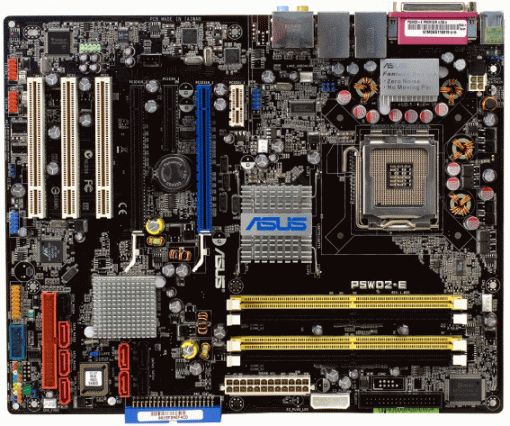
Brands to Watch For: ASUS, GIGABYTE, and MSI are probably the biggest names in motherboards. However, BIOSTAR and ASRock are well known for good budget boards, if you’re trying to keep the cost down.

The Case


Your case may not seem like a super important part of your build, but it’s about more than looks. A good case will be easier to build in, last you a long time, and keep your machine cool. Here’s what you’ll need to look for:
Keep in mind that a case is something you can use for multiple builds down the road, so it’s okay to spend a bit more money on it. You don’t need to buy a new case every time you build a computer. Get a quality one now and it should last you two or three computers into the future.
Brands to Watch for: Corsair, NZXT, Antec, and Cooler Master both make some of the best cases on the market. Termaltake, Rosewill, BitFenix, Fractal Design, Silverstone, and Lian Li are also well trusted manufacturers.


The Memory (RAM)

RAM seems simple, but you need to make sure it’s compatible with your motherboard. When looking at RAM, think about:
I know that’s a lot of specs to worry about that don’t really have practical meaning, so here’s an example. If I’m buying RAM, the first thing I do is look at my motherboard’s spec list. It says that it’s dual channel, and that it supports 240-pin, DDR3 RAM at speeds of 800, 1066, and 1333. If I want 4GB of RAM, I would use Newegg’s power search function to find DDR3 RAM that came at those speeds. Then I would narrow that down further by looking for packs of two 2GB sticks. It’s much simpler than most other compnents.
Brands to Watch For: You won’t find a huge difference between brands. Popular brands include Crucial, Corsair, Kingston, PNY, OCZ, G.Skill, Mushkin, and Patriot. Again, reading reviews of specific sticks of RAM can be very helpful.

The Hard Drive(s)

When it comes to specs, there are a few things you want to look for in your drives:
Brands to Watch For: Western Digital, Hitachi, Samsung, and Toshiba are all good choices. Seagate is also popular, though it has lately gotten a bad reputation for low reliability. Most hard drive manufacturers have a lot of mixed reviews, but I’ve tried all of them and had good experiences.


When it comes to solid state drives, most people recommend Samsung, Crucial, OCZ, Corsair, and Intel.

The Optical Drive

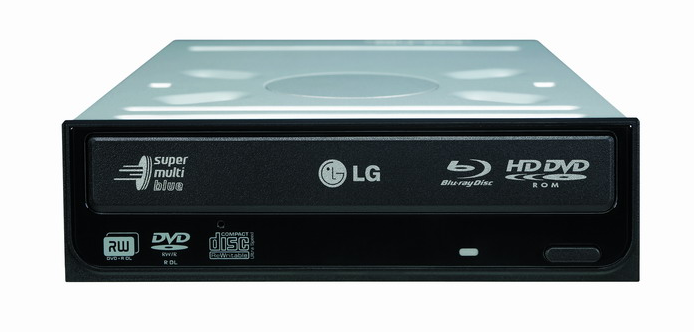
If you’re buying a CD or DVD drive, you probably won’t find a ton of difference between the different models. Most burn discs at around the same speeds. If you’re looking at Blu-Ray drives and Blu-Ray burners, though, pay attention to the read and write speeds. The higher the read speeds, the faster you can rip a Blu-Ray disc, and the faster the write speed on a burner, the faster you can burn a Blu-Ray disc. Obviously, you’ll have to pay more for higher speeds.
Brands to Watch For: It doesn’t make a huge difference who you go with here. Lite-On, Samsung, Sony, and LG are all great manufacturers and the prices should be pretty much the same. The only difference you might find is in the software they come with, but unless there’s an advanced feature in the software you know you want, chances are you’ll never notice a difference between them all.

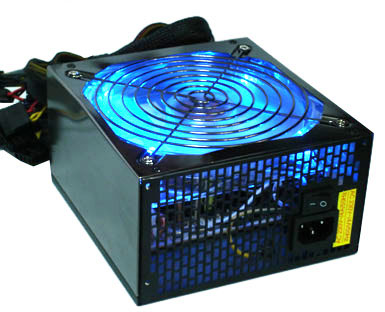
The Power Supply

The power supply is actually one of the most important choices in your build. This is not an area you want to skimp. Reviews on the net are rarely useful, either, with the exception of a few reputable sites like Jonnyguru.com. The best you can do is buy from a good brand (see below) and look for these features:
Brands to Watch For: This is one area where you don’t want to be thrifty. It’s hard to keep track of all the brands out there, but quality manufacturers include Corsair, Enermax, Enhance, Fortron/Sparkle/FSP Group, Hiper, PC Power & Cooling, Seasonic, SevenTeam, SilenX, XClio, and Zippy. Note that some of these manufacturers actually build power supplies for other brands, like Antec, Cooler Master, Silverstone, Thermaltake, Rosewill and others—but it’s sometimes hard to tell which ones are the well-built ones. 
Note: Many cases actually come with power supplies, so if yours does, you don’t necessarily need to buy one separately. That said, the power supplies you’ll buy separately are usually better than the ones that come with cases, but it’s up to you. It’s just something to watch for when you’re shopping for these two parts.

Extra Cooling

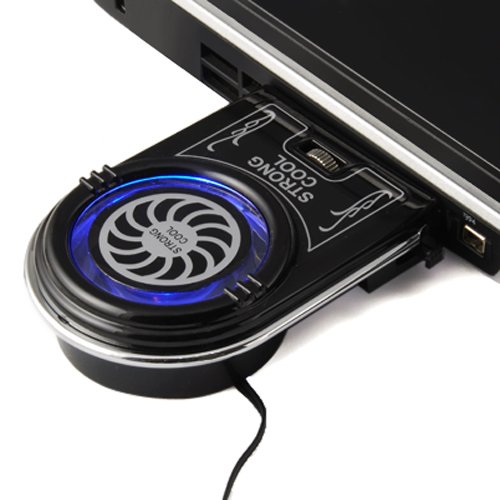
Almost all CPUs come with a heatsink and fan, which are necessary to keep your CPU from overheating. However, many people advocate getting an aftermarket CPU cooler for better performance and lower noise. In addition, if you buy a processor labeled “OEM”, you’ll need a heatsink.
You can find many good heatsinks for quite cheap—just make sure they’re compatible with your CPU socket, fit in your case, and get good reviews. If you really want to get advanced, you can try water cooling, which is even cooler and quieter than air cooling. You can get some good all-in-one water cooling units or build your own (warning: not recommended for beginners or people looking to save money).